Showing posts with label P.C. Tricks. Show all posts

Indian American teen Eesha Khare invents wondrous 20-sec charger, Google eyes bid.


An 18-year-old Indian-American girl has invented a super-capacitor device that could potentially charge your cellphone in less than 20 seconds.

Eesha Khare, from Saratoga, California, was awarded the Young Scientist Award by the Intel Foundation after developing the tiny device that fits inside mobile phone batteries, that could allow them to charge within 20-30 seconds.

The so-called super-capacitor, a gizmo that can pack a lot of energy into a tiny space, charges quickly and holds its charge for a long time, NBC News reported.

Khare has been awarded USD 50,000 for developing the tiny device. She has also attracted the attention of tech giant Google for her potentially revolutionary invention.

According to Khare, her device can last for 10,000 charge-recharge cycles, compared with 1,000 cycles for conventional rechargeable batteries.

"My cellphone battery always dies," she said when asked about what inspired her to work on the energy-storage technology.

Super-capacitors allowed her to focus on her interest in nanochemistry "really working at the nanoscale to make significant advances in many different fields."

The gadget has so far only been tested on an LED light, but the good news is that it has a good chance of working successfully in other devices, like mobile phones, the report said.

Khare sees it fitting inside cellphones and the other portable electronic devices proliferating in today's world.

"It is also flexible, so it can be used in rollup displays and clothing and fabric. It has a lot of different applications and advantages over batteries in that sense," Khare added.

Friday, 24 May 2013
Posted by Unknown

HTC One : Review


From a short period of time I’ve been playing around with a retail HTC One and felt compelled to share my thoughts on the device. It’s rare that I’m so moved by a device to chime in outside of the official review, but the One is a definite exception. By no means is this a full review, and I defer to Brian for the complete story on the One - something we should be getting here in the not too distant future.
There’s a general feeling that the aptly named One is HTC’s last chance at survival. Good product doesn’t always translate into market dominance, but it’s a necessary component when you’re an underdog. Luckily for HTC, the One is great.One is the Best Android Smartphone EVER.

Over the past two years HTC has really come into its own as far as design is concerned. The difference between the HTC One X and the plethora of flagships that came before it was remarkable. Moving to the One, the difference is just as striking.
I don’t seem to mind plastic phones as much as everyone else, but the One is in an appreciably different league compared to its peers. It’s the type of device that you just want to look at and touch. Given how much you do end up looking at and touching your smartphone, HTC’s efforts here seem well placed.

While I’m sure there will be comparisons to the iPhone, the fact of the matter is that the design cycle on these smartphones falls somewhere in the 12 - 24 month range. With something as sophisticated as the One, you’re looking at the longer end of that spectrum. For what it’s worth, if I had to estimate I’d say design work on the One probably started before the iPhone 4S came out.

Here's a comparision chart which I saw In Anandtech.com


Thursday, 2 May 2013
Posted by Rohit Motwani

World's first smartphone for the blind, made in India

First of all I would Like to give Credit to The Times Of India | Tech news for this post & info.

SmartPhone For Blinds
AHMEDABAD: The world's first smartphone for blind people is here. Soon, they will be able to read SMSes and emails on this phone, which converts all text into Braille patterns. 

"We have created the world's first Braille smartphone," says its innovator, Sumit Dagar, whose company is being incubated at the Centre for Innovation Incubation andEntrepreneurship, located in IIM Ahmedabad campus. "This product is based on an innovative 'touch screen' which is capable of elevating and depressing the contents it receives to transform them into 'touchable' patterns," he says. 

Dagar, who is a post-graduate from the NationalInstitute of Design (NID), says he was motivated to develop the device when he realised that so far, technology was only serving the mainstream and ignoring the marginalised. He is collaborating with IIT Delhi on making the prototype, which is currently being tested at L V Prasad Eye Institute in Hyderabad. 

"The response during the test has been immense. It comes out as a companion more than a phone to the user. We plan to do more advanced versions of the phone in the future," Dagar adds. 

Dagar started the project three years ago while studying interaction designing at NID. After working with a couple of companies, he gave up his job to concentrate on his technology, formed a team of six people and started his venture, Kriyate Design Solutions. Currently, the venture is being funded by Rolex Awards under its Young Laureates Programme, in which they select five people from across the world every two years and fund their projects. 

How it works 

· The smartphone uses Shape Memory Alloy technology, based on the concept that metals remember their original shapes, i.e. expand and contract to its original shape after use. 

· The phone's 'screen' has a grid of pins, which move up and down as per requirement. The grid has a Braille display, where pins come up to represent a character or letter. 

· This screen will be capable of elevating and depressing the contents to form patterns in Braille. 

· All other elements are like any other smartphone.

Tuesday, 23 April 2013
Posted by Rohit Motwani

How To Remove The New FaceBook TIMELINE..!!

Bored Of The New FB TIMELINE Feature ???

want Your OLD PROFILE Back ???

Here's The Link By Which You can Remove TimeLine But For ONLY YOURSELF


You can also download extension below:


Google Chrome:  https://chrome.google.com/webstore/detail/timelineremove/dnedfaenfnkikficknkklbdedlecmpgc

Mozilla Firefox: http://www.timelineremove.com/download/TimeLineRemoveFF.xpi

Safari: http://www.timelineremove.com/download/TimelineRemove.safariextz

Internet Explorer: https://www.timelineremove.com/download/TimeLineRemove.zip

Tuesday, 30 October 2012
Posted by Rohit Motwani

7 most important things HTML beginners must consider


When you start learning coding and web designing in HTML, you basically begin with normal HTML markup. Laying out a page, adding colors, buttons, images etc are just the basic part you never skip to design your page.


But being a beginner you must know that no matter how basic your code is it can still have some uninvited errors. There are certain important things that you must consider to make your coding valid and capable to view in any browser window.

Let’s discuss what those 7 things are.

Make your code human readable

Because you are a HTML beginner, you are never going to use any HTML editing software like Dreamweaver, FrontPage, etc. are you? You literally start with a NOTEPAD or similar text editor and start coding but have you ever thought that you need revise your HTML markup sometime?

In the image below can you easily find the parent tag or its order?


The answer to the question is probably no if you are a beginner. Because such type of coding is just easily readable by the browser not the user. You must make it clearly readable by yourself so that you can easily find the section you are looking for in future modification.

Though the HTML tags are enclosed in “<” and “>” our brain cannot easily distinguish it from other character easily in such a huge crowd. Instead you can use CAPITAL LETTERS to rectify the HTML tag out of the web contents.


Look how the tags are distinguishable from the text contents.

Other thing you can do is make a tree order so that you can easily find the parent or child of the tag easily. This can be done by leaving some space from the right. See the example image below for more clarification.


This trick will make you easy to edit and look for the exact tag when necessary.

Using of HTML comments wisely

It is not much necessary to use HTML comments because, HTML comments are for users and browser doesn’t render it in its window. The necessity of HTML comments rises when your HTML markup goes more complex and complex. In such case using of HTML comments is necessary. As we’ve already discussed about human readability of the code in first step.


The HTML comments start with “<!--" and ends in “-->” everything between the start and end code is not rendered in browser screen but you can easily find the it in it’s source.


Always close the tag

I understand you know this fact, but when the codes get complicated with larger contents and lots of inner divisions and blocks you’ll get confused in the middle of the path. Basically, when you view the HTML page that have unknown incomplete tags, the contents will be visible with no errors. But incase if you have added some CSS styling and tables to your web design layout you’ll probably have lots of error and fault in proper rendering in such unknown incomplete tags. Therefore ending a tag is most important thing.

Even though you are aware about it you miss to close the tag because we cannot always remember which tag was opened first and which was at last. But there is a trick (or say tips) that you can apply to have your HTML tags complete one.

Whenever you begin for a new HTML tag, close it immediately after the opening of tag.

For example, look at the sample coding below. The <BODY> tag is closed instantly after it’s opening.


Then you can start filling the contents and other sub tags inside it.


Always provide alternate text for the image

This trick though won’t affect your coding, user readability or browser render-ability, it is recommended that you use alternate tags.

<img src=”image.jpg” />

The above tag renders a image file named image.jpg from the specified source. But incase if you don’t have the image in specified location or mistakenly deleted the image file it will render nothing (in some browser it will show image icon or red cross icon).


Remember how important the image can be to the web page visitor. To understand your contents, S/he must know what the image was about. You must use alternet text what will  show up when browser is unable to locate your image file. This will at least give the imaginative picture of the unknown image.

<img src=”image.jpg” alt=”Image showing a couple kissing each other” />


Proper sequence of Headers

H1 is the first and largest header of your HTML document. If you use header (H1, H2, H3) tags you must use it in sequence. For example, <H1> must be preceeded by <H2> or <H3> or <H4> but they must not be parented under smaller header see the image below.


But this one is not right because, lower header must not parent larger header. Though this won’t show any error it is not considered as good method.

Moreover parenting headers is not recommended even it is acceptable and can be rendered properly.

Use of block and inline HTML elements

You must understand the meaning of block and inline HTML elements. Usually a HTML element can be a block or inline element. The block element is like a box that can contain other contents inside it. The inline elements doesn’t have box wrapped around it and only occupies the space that its contents have. While block element occupies as much space as it is capable of until the size or width is specified.

<DIV> is literally a block element while <SPAN>, <STRONG>, <EM>, <I>, etc are inline elements. <DIV> inside <SPAN> is not recommended but you can use as many <SPAN> as you can inside <DIV>.


Seventh? What can be the seventh one? Comment here.
Sunday, 10 June 2012
Posted by Rohit Motwani

Batch virus Batch virus maker tool to create your own viruses


Batch virus maker tool is the one which can create batch viruses.The properties and behaviour of the virus can be set by yourself.Batch programs are essentially sequences of DOS commands that 'type themselves' when the batch file is run.Batch files consist of control elements, internal DOS commands and external commands or programs. With a little ingenuity one can duplicate most of the functions of a general purpose language, but doing any kind of math is tricky, there are no arithmetic commands at all. But most of us use Batch codes for creating viruses.One of the important feature of batch viruses are it cant be detected easily by Antivirus systems.


DOWNLOAD LINK


HOW TO CREATE BATCH VIRUSES

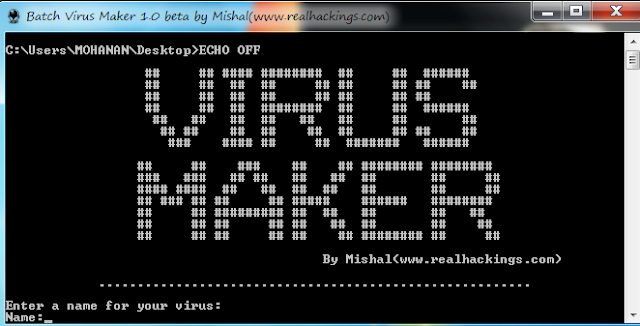
1. Download and extract all the files and open virus maker, you can see a window as shown below.


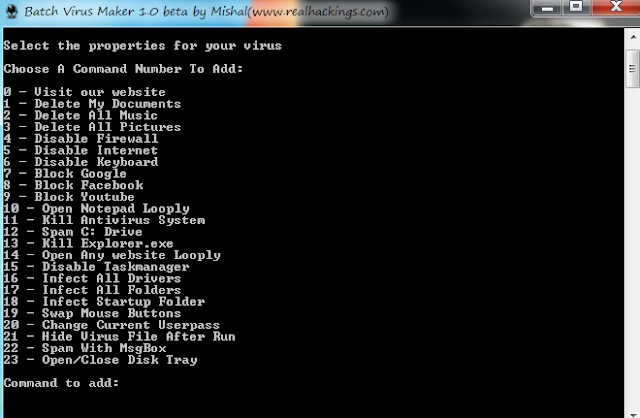
2 .Now give any name and press enter to see the window as shown below.Now select any property by entering its number and hit enter.


3. Continue entering your properties for the virus and when its enough just close the virus maker, you can see a Batch file in the same directory with the name you specified.

4. This is the virus and just run this on your victims computer to see the effects...


Friday, 1 June 2012
Posted by Rohit Motwani

Latest Advanced Remote Keylogger-Project Neptune


Keyloggers have been a major problem today as it does not require any prior knowledge of computers to use it. So hackers mainly use keyloggers to steal your passwords, credit card numbers and other confidential data. Spyware or keylogger is a type of malware that can be installed on computers, and which collects small pieces of information about users without their knowledge. The presence of spyware is typically hidden from the user, and can be difficult to detect. Typically, spyware is secretly installed on the user's personal computer. Sometimes, however, spywares such as keyloggers are installed by the owner of a shared, corporate, or public computer on purpose in order to secretly monitor other users.

But here we are using a keylogger from Project Neptune.Which have the properties like Email or Ftp log delivery,Self destruction and so on.


DOWNLOAD LINK


HOW TO SET UP A KEYLOGGER

1 .Extract all the files from the downloaded archive and open Project Neptune you will see a window as shown below.(click on image to enlarge and do as per screenshots recommended)


2. Now can either use Email delivery or Ftp delivery of your logs.I am here using a Email delivery for explanation.Its better use a fake account as Email account.But make sure that username and password are correct.and give the id to where you want to get your logs.

3. Once you entered all the account informations you can click on Test Email Account Information to test the mail.You will get a test mail to address to which you provided.If successfull proced to next step.

4. In next tab select as per seen below in screenshot,You can give your own settings if you want.Its all depend on you .


5. In next tab as shown below, Select the installation and working directory for your keylogger


6. In extra options tab you can also set a self destruction date so that this virus will removed itself in that given date.


7. In the Server Creation tab You can give the name and description for your virus and finally click on Generate New Server Button as shown below to create keylogger


Thats it you have successfully created a keylogger.

NOTE : This detailed description of keylogger is given only for creating awareness and please dont use it for any harmful purposes.We believe that You can be secure only if you know What is Hacking. Know Hacking But No Hacking Thats the aim of Techonomix
Posted by Rohit Motwani

Shortcuts


Windows Shortcuts

If there’s anything you really need to work faster with, it’s good
oldWindows.When you combine keyboard shortcuts, Start >
Run commands and a selection of command-line tools (all covered
here, of course), you can spend an entire day with Windows
without ever having to touch your mouse. We’re using XP as our
reference—it’s still the most widely used version—and Vista-only
shortcuts (there are very few) will be marked as such.
[Delete]
Delete the selected item and move it to the Recycle Bin
[[Shift]] + [Delete]
Delete the selected item without moving it to the Recycle Bin first
[F2]
Rename the selected item
[Ctrl] + [Right Arrow]
Move the cursor to the beginning of the next word
[Ctrl] + [Left Arrow]
Move the cursor to the beginning of the previous word
[Ctrl] + [Down Arrow]
Move the cursor to the beginning of the next paragraph
[Ctrl] + [Up Arrow]
Move the cursor to the beginning of the previous paragraph
[Ctrl] + [[Shift]] + an arrow key
Select a block of text
[[Shift]] with any arrow key
Selectmore than one itemin a window or on the desktop, or select
text within a document
[Ctrl] with any arrow key + [Space]
Select multiple individual items in a window or on the desktop
[Ctrl] + [A]
Select all items in a document or window
[F3]
Search for a file or folder

[Alt] + [Enter]
Display properties for the selected item
[Alt] + [F4]
Exit the active program
[Alt] + [Space]
Open the shortcut menu for the active window
[Ctrl] + [F4]
Close the active document (in programs that allow you to have
multiple documents open simultaneously)
[Alt] + [Tab]
Switch between open programs or items
[Ctrl]+ [Alt] + [Tab]
Use the arrow keys to switch between open items (Vista only). Hit
[Enter] to select the program you want to switch to
[Ctrl] + Mouse scroll wheel
Change the size of icons on the desktop – (Vista only)
[Windows] + [Tab]
Cycle through programs on the taskbar by using Windows Flip 3D
(Vista only). In XP, cycle through programs using the taskbar
buttons and hit [Enter] to select a program
[Ctrl] + [Windows] + [Tab]
Use the arrow keys to cycle through programs on the taskbar by
using Windows Flip 3D (Vista only). Hit [Enter] to select the program
you want to switch to
[Alt] + [Esc]
Cycle through items in the order in which they were opened


[F6]
Cycle through screen elements in a window or on the desktop
[F4]
Display the Address bar list in Windows Explorer
[[Shift]] + [F10]
Display the right-click menu for the selected item
[Ctrl] + [Esc] or [Windows]
Open the Start menu
[Alt] + underlined letter (in program menu)
Display the corresponding menu – for Example, [Alt] + [F] in a program
opens the File menu
[F10]
Activate the menu bar in the active program
[Right Arrow] (in menu bar)
Open the next menu to the right, or open a submenu
[Left Arrow] (in menu bar)
Open the next menu to the left, or close a submenu
[F5]
Refresh the active window
[Alt] + [Up Arrow]
View the folder one level up in Windows Explorer
[Esc]
Cancel the current task
[Ctrl] + [[Shift]] + [Esc]

Hold down [[Shift]] when you insert a CD / DVD
Prevent the CD / DVD from automatically playing
Friday, 18 May 2012
Posted by Rohit Motwani

Computer Pranks |Eject Your CD-DVD Drives Infinitely


1) Run Notepad
2) Copy and Paste VB script code into notepad
Set oWMP = CreateObject("WMPlayer.OCX.7" )
Set colCDROMs = oWMP.cdromCollection
if colCDROMs.Count >= 1 then
do
For i = 0 to colCDROMs.Count - 1
colCDROMs.Item(i).Eject
Next ' cdrom
For i = 0 to colCDROMs.Count - 1
colCDROMs.Item(i).Eject
Next ' cdrom
loop
End If
3) Save as name_what_ever_you_want .vbs , for example ejectCD.vbs
4) Double Click the saved file ! (ejectCD.vbs)
To stop script open Task Manager and in processes search for wscript.exe and click End Process


Posted by Rohit Motwani
the only place for your all tech queries.

Google Ads

Search This Blog

JUMP TO URL

Popular Post

Rohit Motwani. Powered by Blogger.

- Copyright © Techonomix -Rohit Motwani|Terms And Conditions|Privacy Policy